AI Applications
Choose an AI model to get started
Video Generation
Image Generation
Audio Generation
Video Effects
Google Veo3.1 Lite Image to Video
Transform static images into cinematic 720p/1080p video with Google Veo 3.1 Lite. Supports landscape and portrait aspect ratios, negative prompt control, and customizable duration up to 8 seconds.
Input
Output
Generated content will appear here
Example Results
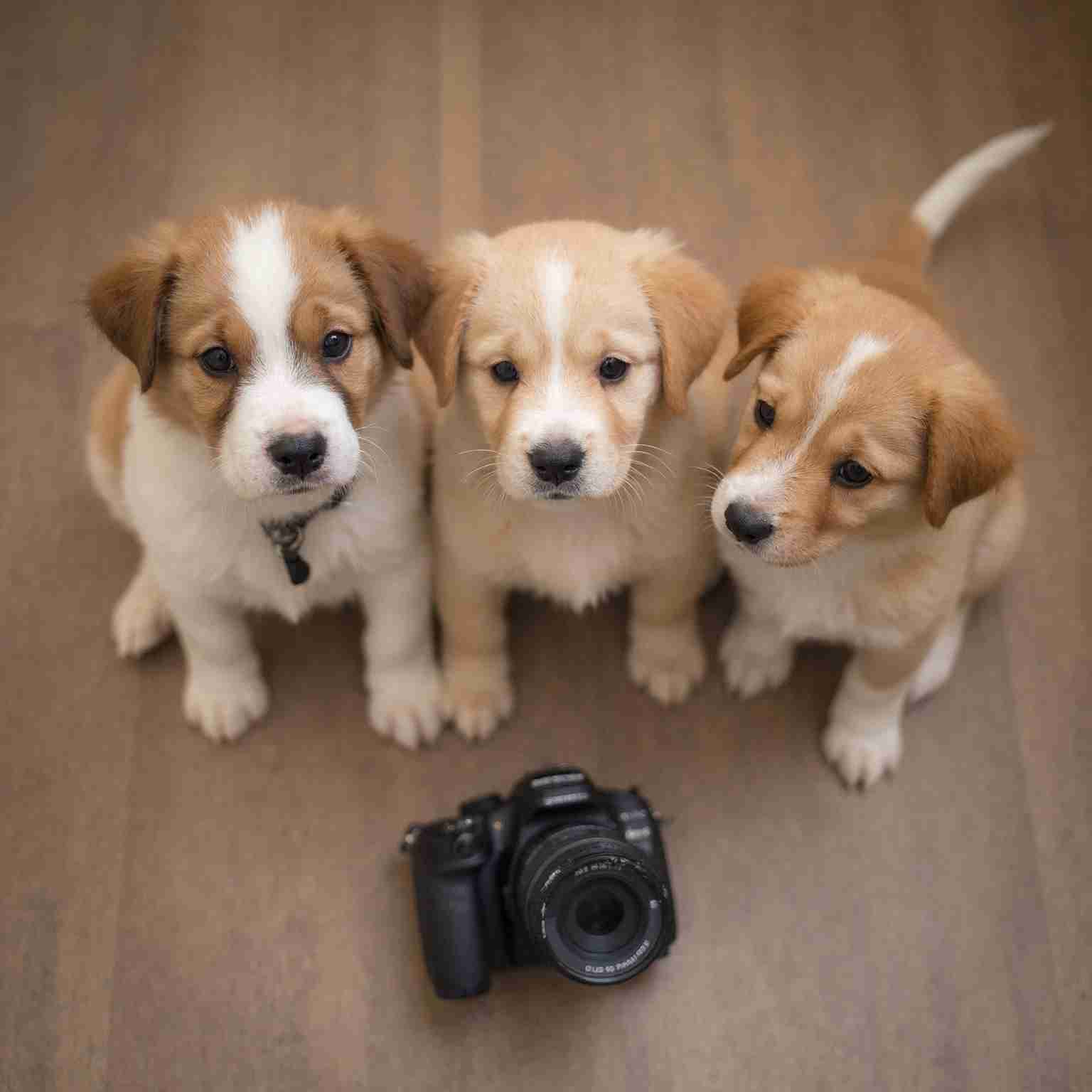
Video Generation:
The cat slowly turns its head and looks at the camera, soft autumn light, gentle wind blowing leaves outside the window
Video Generation:
The cat slowly turns its head and looks at the camera, soft autumn light, gentle wind blowing leaves outside the window
Frequently Asked Questions
- What kind of images work best as input?
- Clear, well-lit photos with a distinct subject work best. Avoid heavily compressed, blurry, or overly cluttered images. The model uses the image as a visual reference to generate motion and scene dynamics.
- How does the prompt affect the output?
- The prompt guides the motion and atmosphere of the generated video. Describe camera movements (pan, zoom, dolly), subject actions (walking, turning), and mood (dramatic, peaceful) to shape the result.
- What is the difference between 720p and 1080p?
- 720p delivers good quality for drafts and social media. 1080p provides higher detail and sharper visuals, ideal for final production. 1080p costs approximately 1.6x more per second.
- What durations are supported?
- You can generate clips of 4, 6, or 8 seconds. Shorter clips cost less and are great for quick iterations, while 8-second clips work well for complete scenes.
- What does the negative prompt do?
- The negative prompt lets you specify elements to exclude from the generated video — such as 'blurry, watermark, text overlay, low quality'. This helps refine the output and avoid common artifacts.
You Might Also Like
View AllSeedance 2.0 Fast Image to Video
Generate cinematic videos from a reference image with native audio-visual synchronization, subject preservation, and expressive motion — optimized for faster generation at 33% lower cost.
Seedance 2.0 Fast Text to Video
Generate cinematic videos from text prompts with native audio-visual synchronization, director-level camera and lighting control, and exceptional motion stability — optimized for faster generation at 33% lower cost.
Seedance 2.0 API
ByteDance's next-generation AI video model featuring 2K cinema-grade output, native audio-video sync, multi-modal input with up to 12 reference assets, multi-shot storytelling, and 8+ language lip-sync — all from a single prompt.